
The page loads, but Play does nothing
- Click Play only once and wait
- Confirm JavaScript is enabled
- Allow the embedded game domain in a content blocker
- Try a current browser without extensions
Browser Troubleshooting
Start with the safest reversible checks before deleting any browser data. This guide separates player loading, black screens, saves, audio, fullscreen, mobile limits, and browser compatibility so you can fix the actual symptom without risking a route backup.
Start Here
Do not clear site data. Export saves first if the game menu offers that option.
Refresh the page one time, press Play, and leave the tab active while assets load.
Temporarily allow scripts, storage, and the embedded game host for this page.
Test a current browser or clean profile to separate a site problem from an extension problem.
A loading failure before the player appears is different from a black frame after launch. Use the visible symptom to choose a shorter test sequence.
First confirm that the site header and game cover load. If they do, the main page is available and the problem is probably the separately hosted game assets or browser policy rather than the whole website.
Press Play once. Keep the tab active and avoid switching networks. If no player appears, test without script blockers, strict iframe restrictions, browser translation, or extensions that rewrite pages.
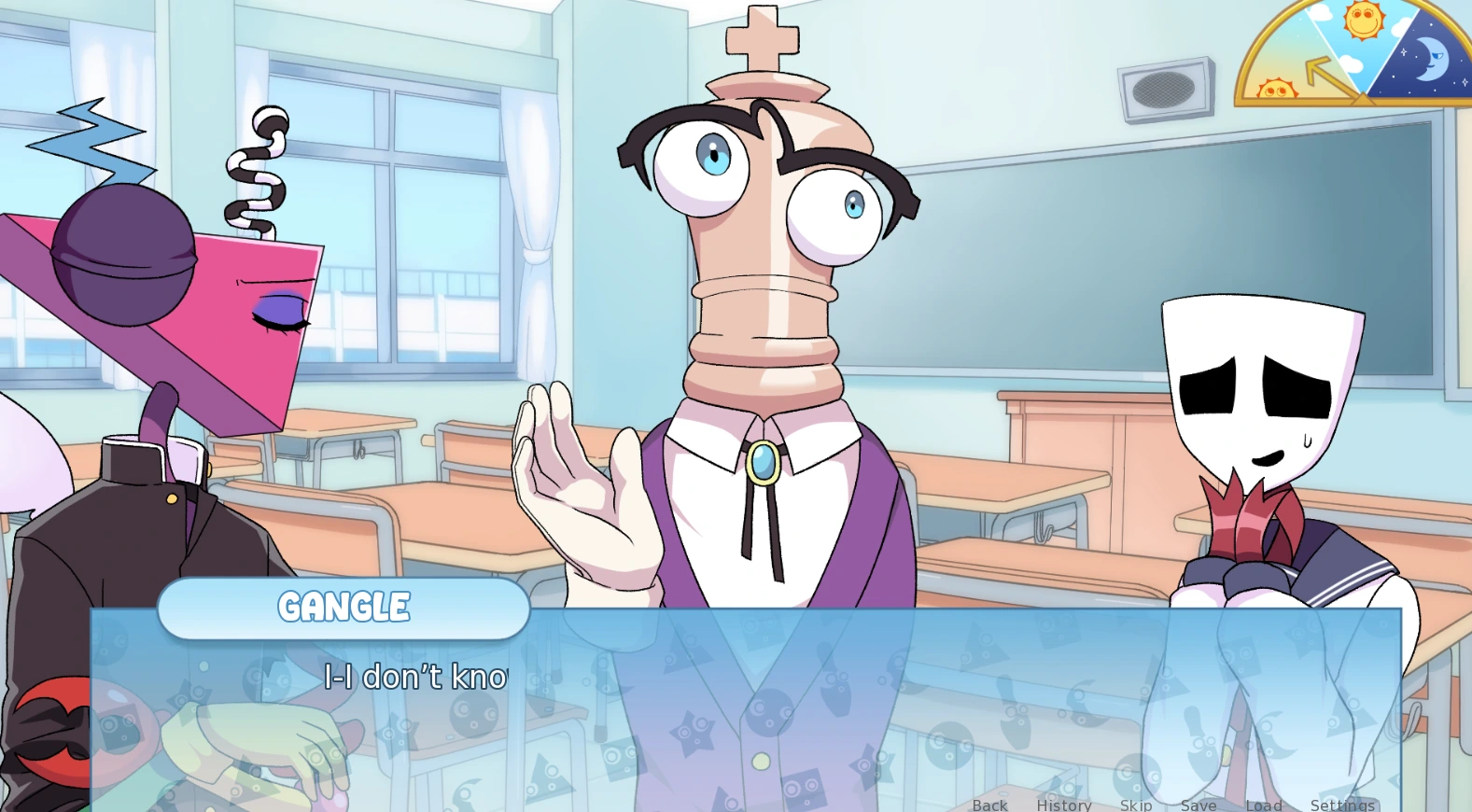
A black frame after the iframe appears usually means the browser started the player but did not finish a script, image, audio, or data request. Close heavy tabs and perform one clean reload.
On mobile, rotate only after the title screen appears. On desktop, open developer tools only if you understand the console; clearing every storage entry is not a safe first response because it may remove saves.
Browser saves normally remain tied to the same browser profile and stored website data. A save made in Chrome does not automatically appear in Firefox, private mode, another phone, or the downloaded application.
Use several named manual slots: one at the beginning of each day and another before a route-defining outing, prank, lunch, confession, or Pool Scene choice. If the Ren'Py menu shows Import Saves and Export Saves, export before clearing data, reinstalling a browser, or moving devices.
If a save seems missing, return to the exact browser profile used to create it. Check whether you entered private mode or cleared cookies/site storage. Do not create many new saves until you know whether the old profile is still available.
Tap inside the player, raise media volume, unmute the tab, and verify the correct speaker or headphones are selected.
Interact with the page first, then use fullscreen. Browser security blocks fullscreen requests that are not triggered by a click or tap.
Close unused tabs, use landscape, avoid private mode for saved routes, and follow the dedicated mobile setup guide.
Use a maintained browser with JavaScript, storage, WebGL, and audio enabled. A clean browser profile is the fastest extension test.
Confirm that the page itself loads, press Play once, keep the tab active, and wait for the game assets. If it still fails, reload once, disable blockers for this page, and try a current Chrome, Edge, Firefox, or Safari browser.
A black frame can mean the embedded game lost an asset request, a blocker stopped scripts, or the device ran low on memory. Close other heavy tabs, allow the game host, reload once, and press Play again.
It can remove a damaged cache, but it can also erase browser-based saves. Export saves first when the game menu offers that control. Try a normal reload, a different browser profile, or a private test window before deleting stored site data.
Browser saves belong to the browser profile and web storage used by the game build. They do not automatically follow you to another browser, private window, device, or downloaded application.
Browsers often require a user action before playing audio. Tap or click inside the game, verify media volume and tab permissions, and check that the operating system is sending sound to the intended output device.
Fullscreen normally requires a direct click or tap. Interact inside the game first, then use the page fullscreen control. Exit another fullscreen app or picture-in-picture window if the browser rejects the request.
The game may load, but private browsing can restrict storage and usually removes local data when the private session closes. Use a normal browser profile for a route you intend to save.
Use Vocastar's official downloadable build when browser storage, repeated loading, or device compatibility keeps interrupting longer route sessions. Never download a mirror presented by an unrelated APK or ZIP website.